Key takeaways
- Two-step verification adds a 6-digit PIN to your WhatsApp. Without it, anyone who gets your login code can take over your account.
- It takes about two minutes: Settings, Account, Two-step verification, Turn on.
- Add an email address you can open. It’s the only quick way back in if you ever forget the PIN.
- Never share your 6-digit login code or your PIN with anyone, even someone who says they’re from WhatsApp.
A few hours ago I was logged out of my own WhatsApp. Someone had requested a login code for my number, and the first thing I thought was that my account had been hacked. On Reddit I found more than 100 people describing the same thing.
I stayed calm for one reason: I had already turned on WhatsApp two-step verification. Even with my login code, nobody could open my account without my PIN. This guide shows you how to turn it on, step by step, in about two minutes.
Do this today, not later. You can’t turn it on once someone else is already in your account. If your business takes bookings or enquiries on WhatsApp, that number is your front desk.
What two-step verification does
When WhatsApp is set up on a phone, it sends a 6-digit login code to your number. If someone tricks you into sharing that code, or requests it the way it happened to me, they can try to register your number on their phone.
Two-step verification adds a second lock: a 6-digit PIN that only you know. WhatsApp asks for it whenever your number is registered again, so a login code on its own is no longer enough.
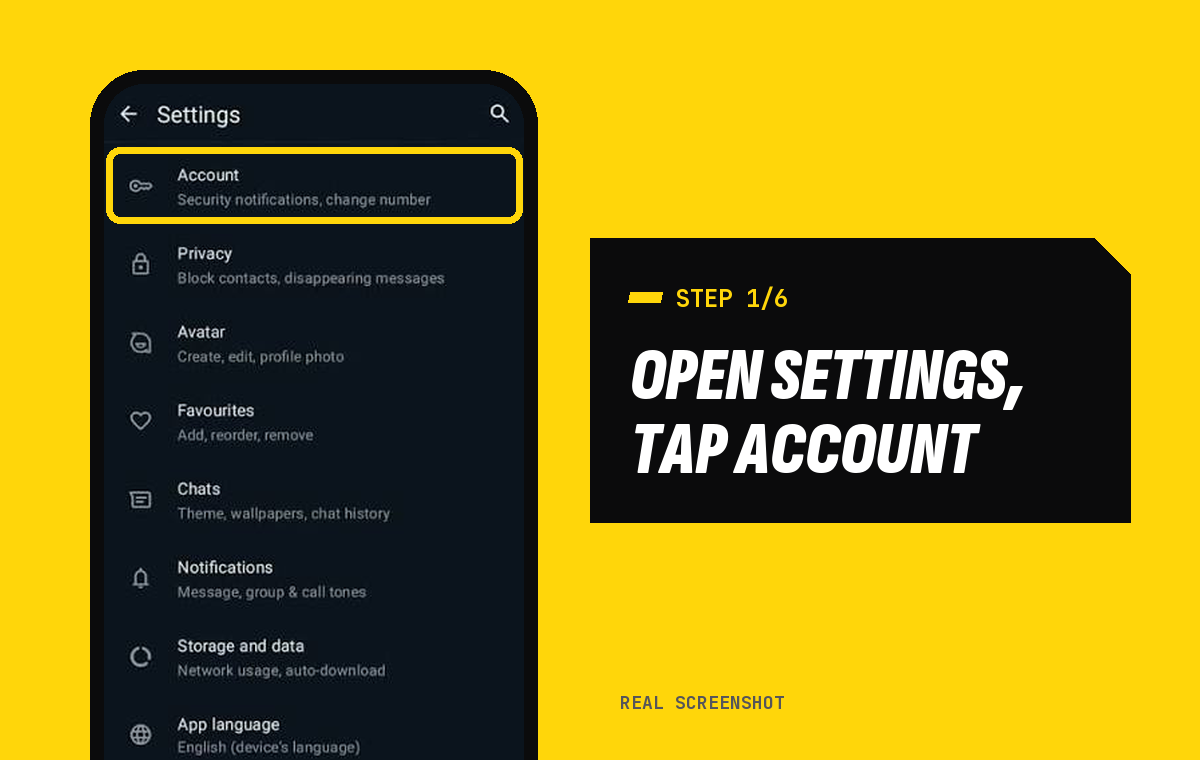
Step 1: open Settings, then Account
Open WhatsApp and go to Settings. On Android, tap the three dots at the top right, then Settings. On iPhone, tap Settings at the bottom right. Then tap Account.
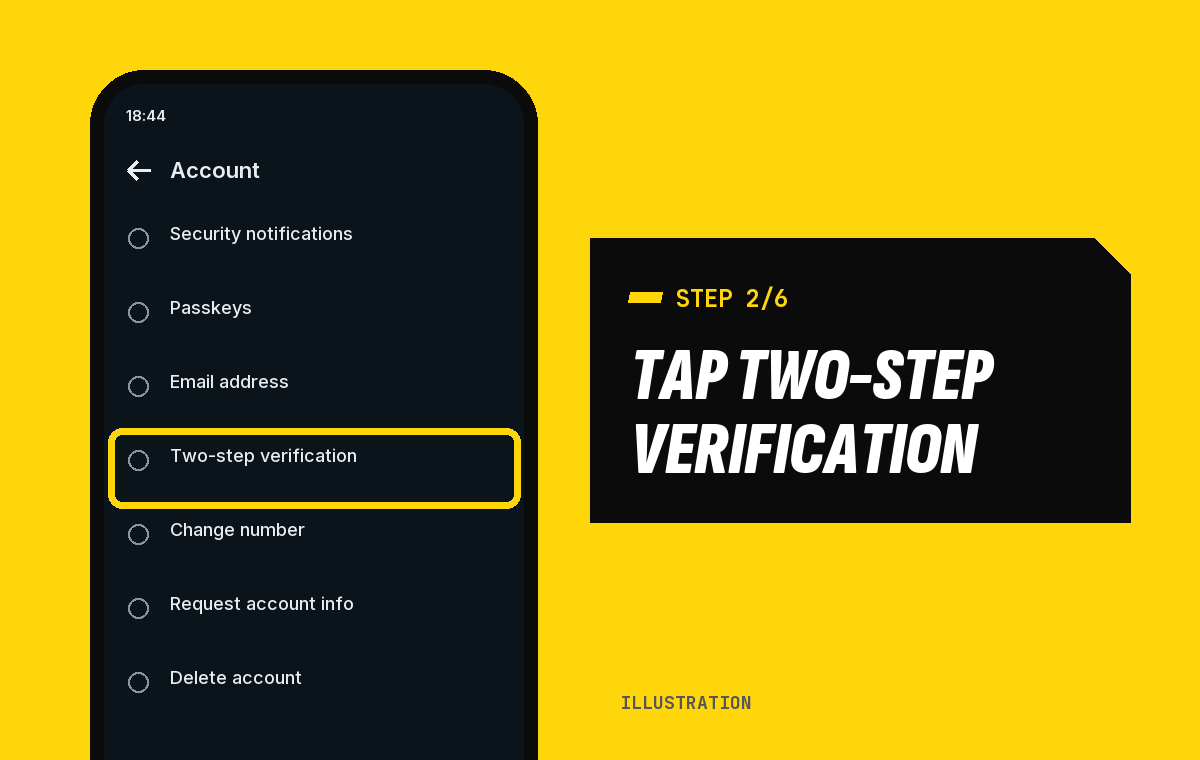
Step 2: tap Two-step verification
In Account you’ll see options like Security notifications, Email address and Change number. Tap Two-step verification.
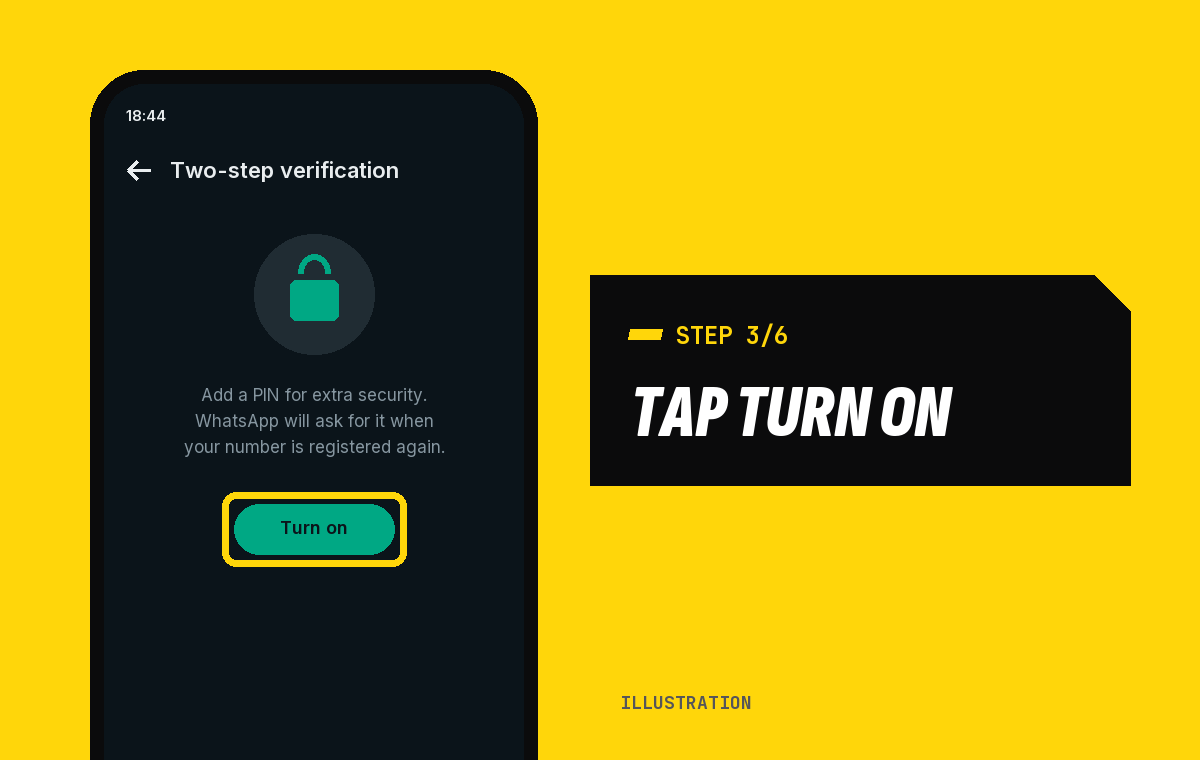
Step 3: tap Turn on
Tap Turn on. If it already says the feature is on, you’re protected and can skip to the checks at the end.
Step 4: create your 6-digit PIN
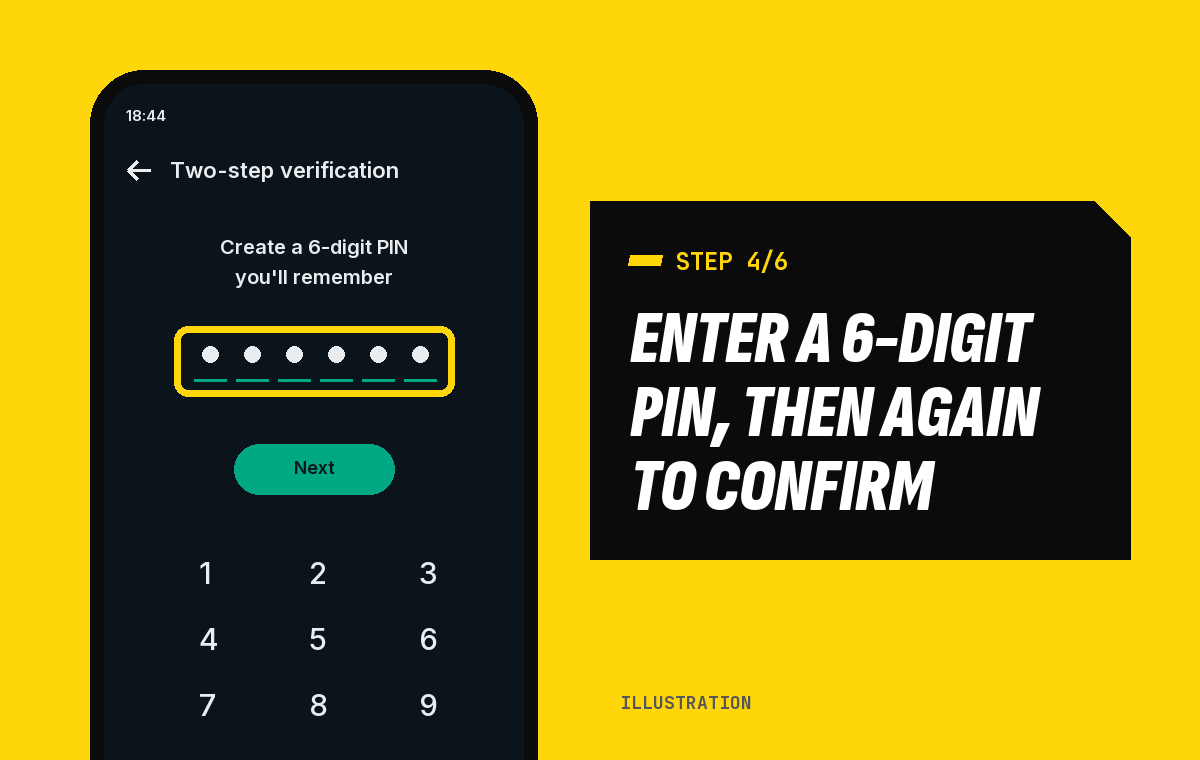
Type a 6-digit PIN, tap Next, then type it again to confirm. Pick something you’ll remember but nobody could guess. Don’t use your birthday, 123456 or the same digit six times.
Step 5: add an email address
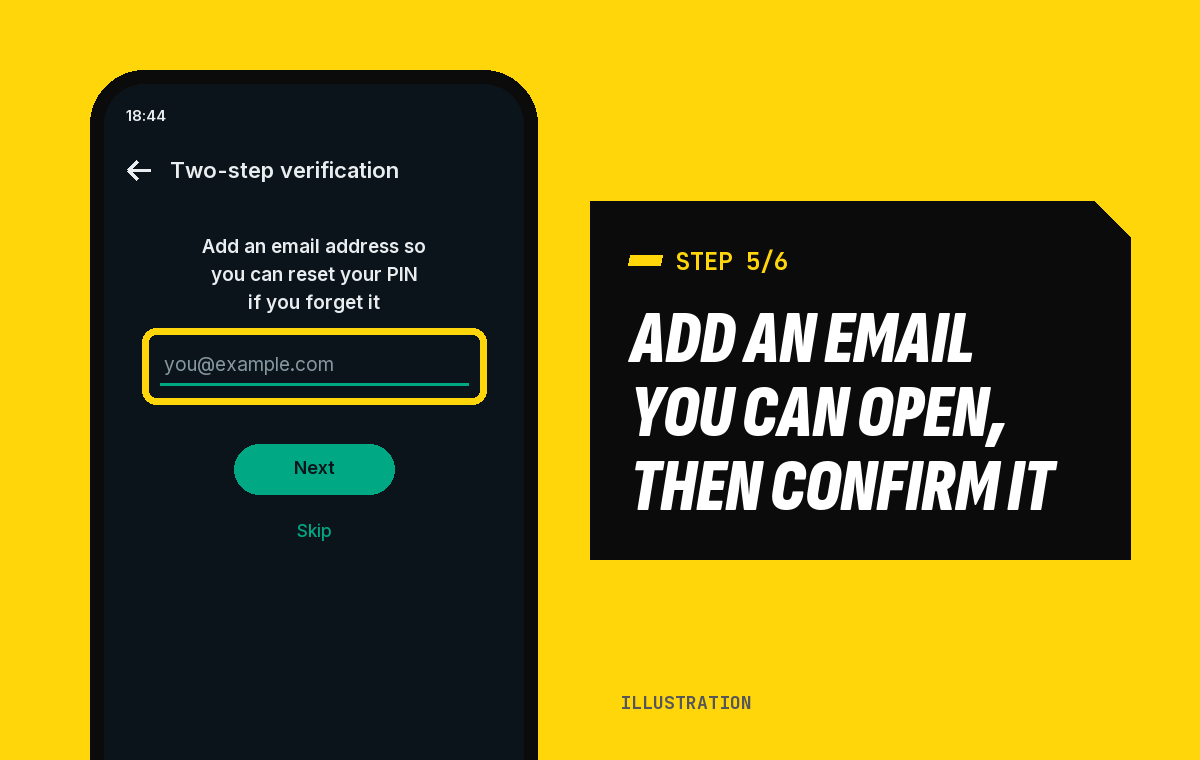
WhatsApp then asks for an email address. You can skip it, but don’t. If you ever forget your PIN, this email is how you reset it. Use an address you can actually open, type it twice, and tap Next.
WhatsApp may ask you to verify the email with a code. Open your inbox, find the email from WhatsApp, and confirm it.
Step 6: check it’s on
You’ll see a confirmation that two-step verification is on. From now on WhatsApp will sometimes ask for your PIN, so you don’t forget it. That’s normal.
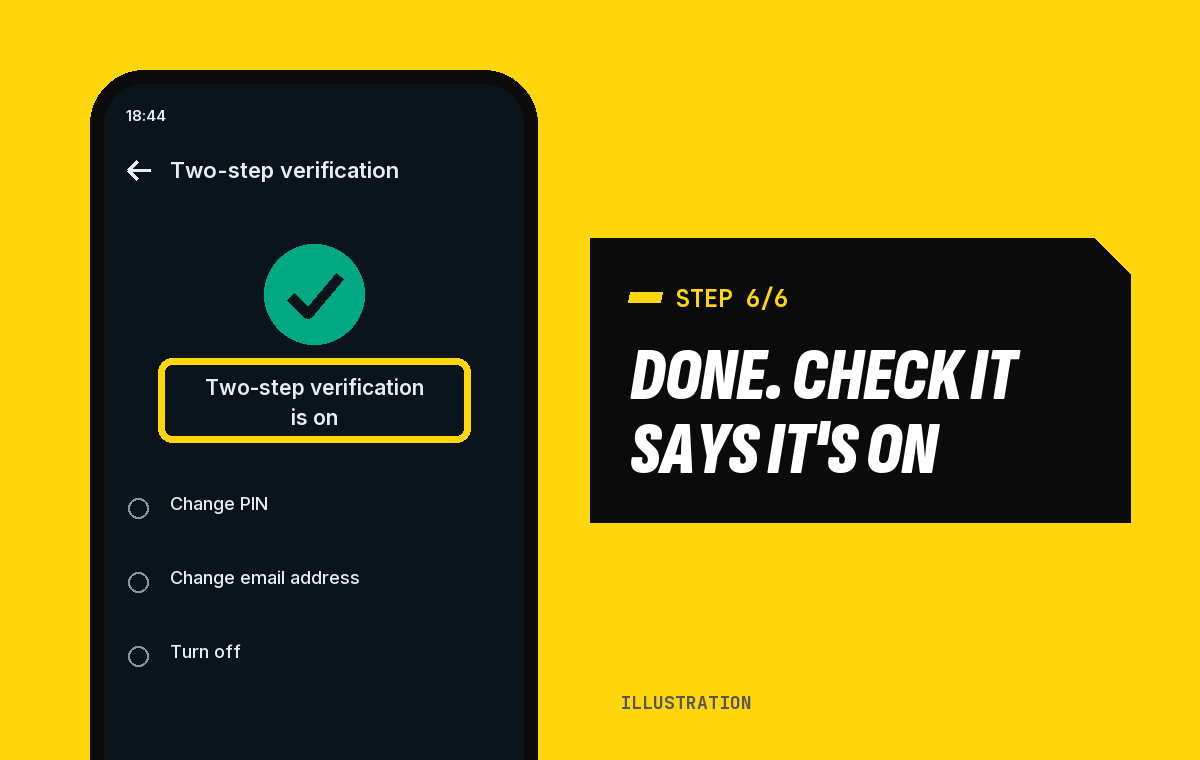
- Go back to Settings, Account, Two-step verification. It should offer Change PIN and Change email address, which means it’s on.
- Write the PIN somewhere safe, like your password manager.
- Do the same on any other WhatsApp number you use, including WhatsApp Business.
If you’re already locked out
If you’ve been logged out like I was, open WhatsApp and register your number again with the SMS code sent to your phone. If someone else turned on two-step verification on your number first, WhatsApp will ask for a PIN you never set.
Several guides report the same thing: without a recovery email, you have to wait about seven days before the app lets you reset the PIN with Forgot PIN. Nobody can skip that wait for you, so ignore anyone who offers to unlock your account for a fee. Keep your SIM in your phone while you wait, and avoid trying again and again. Help Desk Geek’s guide walks through the reset.
FAQ
Is two-step verification the same as my login code?
No. The login code is the 6-digit code WhatsApp sends by SMS when you set up your number. The two-step verification PIN is a second 6-digit code you choose yourself. Someone needs both to take over your account.
What if I forget my PIN?
If you added an email, tap Forgot PIN and WhatsApp sends a reset link to that email. Without an email, you’ll usually have to wait about seven days before you can reset it in the app.
Will this stop me using WhatsApp on a new phone?
No. You enter your PIN once when you set WhatsApp up on the new phone. That’s the point: you can get in, and someone else can’t.
Does deleting and reinstalling WhatsApp turn it off?
No. Reinstalling the app doesn’t remove or reset the PIN. You turn it off in Settings, Account, Two-step verification.
Does it work on WhatsApp Business?
Yes. It’s in the same place in the WhatsApp Business app. If your business takes bookings on WhatsApp, turn it on there first.
What to do next
Send this page to your team and anyone who runs your business WhatsApp. If enquiries or bookings come in through WhatsApp and you want them handled properly, message me on WhatsApp or take the free Booking Score to see where your booking system leaks.
Free tutorials
Want the next tutorial first?
Leave your details and each new one comes to your inbox and WhatsApp.
You're in.
Thanks. The next tutorial comes straight to your inbox and WhatsApp.

I build booking systems, websites and AI automation for padel clubs, gyms and leisure venues. 56 projects delivered on Upwork with 100% Job Success.