Key takeaways
- I plugged my Android phone into my laptop and let Claude Code redesign the whole thing in my own branding: wallpapers, lock screen and 79 custom icons.
- Claude designed everything in Figma first, then installed it on the phone over a USB cable using adb, Android’s own developer tool.
- It works on Android because Android lets a computer control the phone once you turn on USB debugging. An iPhone doesn’t allow this.
- You need a laptop, a USB cable, Claude Code and about an hour. Everything here can be undone.
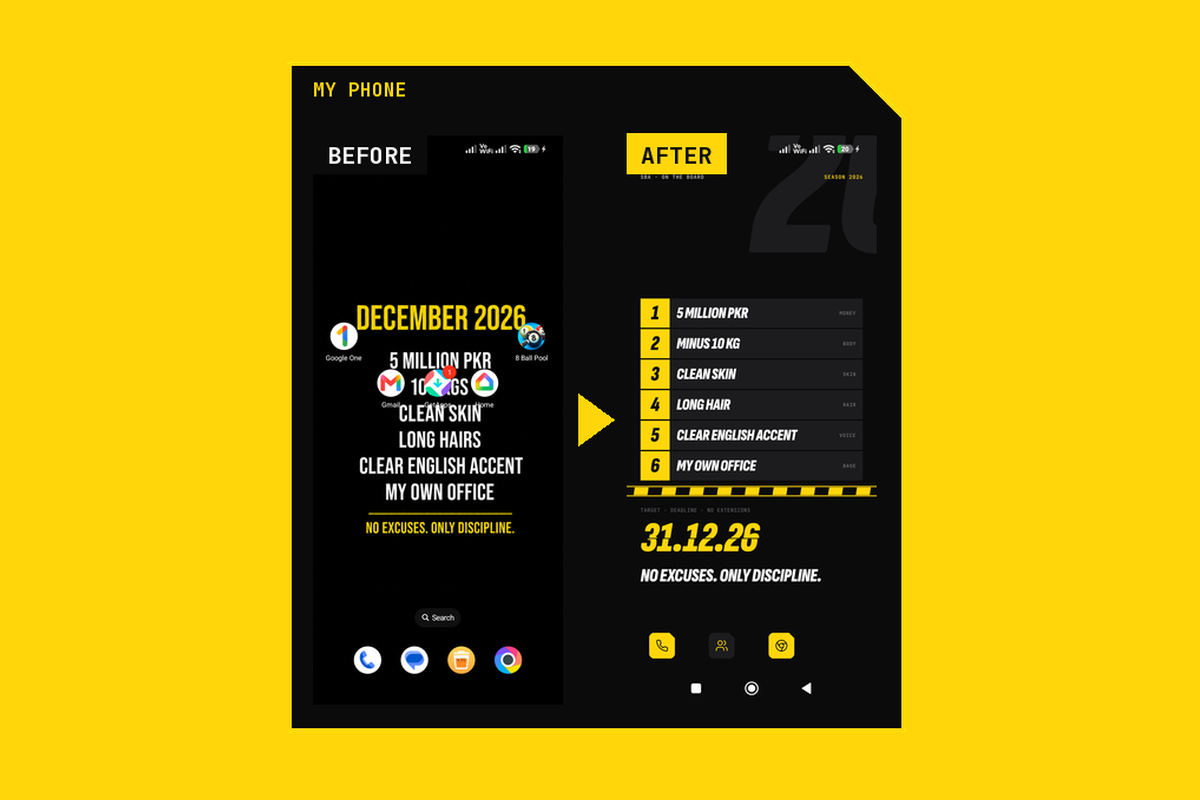
My WhatsApp was down for a few hours, so for once nobody could message me. I used the time to do something I’d wanted for a while: make my phone look like my brand. Instead of hunting through theme apps, I gave the job to Claude Code. This guide is exactly what I did, step by step, with the prompts I used.
What you need
- An Android phone (mine is a POCO C75 running HyperOS 3, Android 16).
- A laptop with Claude Code installed, and a USB cable that carries data, not just charge.
- Figma, if you want Claude to design the screens there first (I use the Figma connector in Claude Code, so it can draw in my file directly).
- Your brand basics: colours, fonts, and the words you want on your screen. My wallpaper is my goal list for the year.
Why Android and not iPhone
Android has a developer mode that lets a computer talk to the phone over USB. With it, Claude Code can list apps, install apps, copy files and change settings, all from the terminal. Android also lets you replace the home screen app with another one.
iPhone doesn’t let you replace the home screen app, and there’s no equivalent of this USB control for everyday users. So this guide is Android only.
Step 1: turn on USB debugging
- Open Settings > About phone and tap Build number seven times (on Xiaomi and POCO phones, tap OS version instead). You’ll see “You are now a developer”.
- Go to Settings > Additional settings > Developer options (on most other phones it’s under Settings > System).
- Turn on USB debugging.
- On Xiaomi and POCO phones, also turn on Install via USB and USB debugging (Security settings). Xiaomi asks you to sign in to a Mi account for these. Without them, the phone blocks app installs and taps from the laptop.
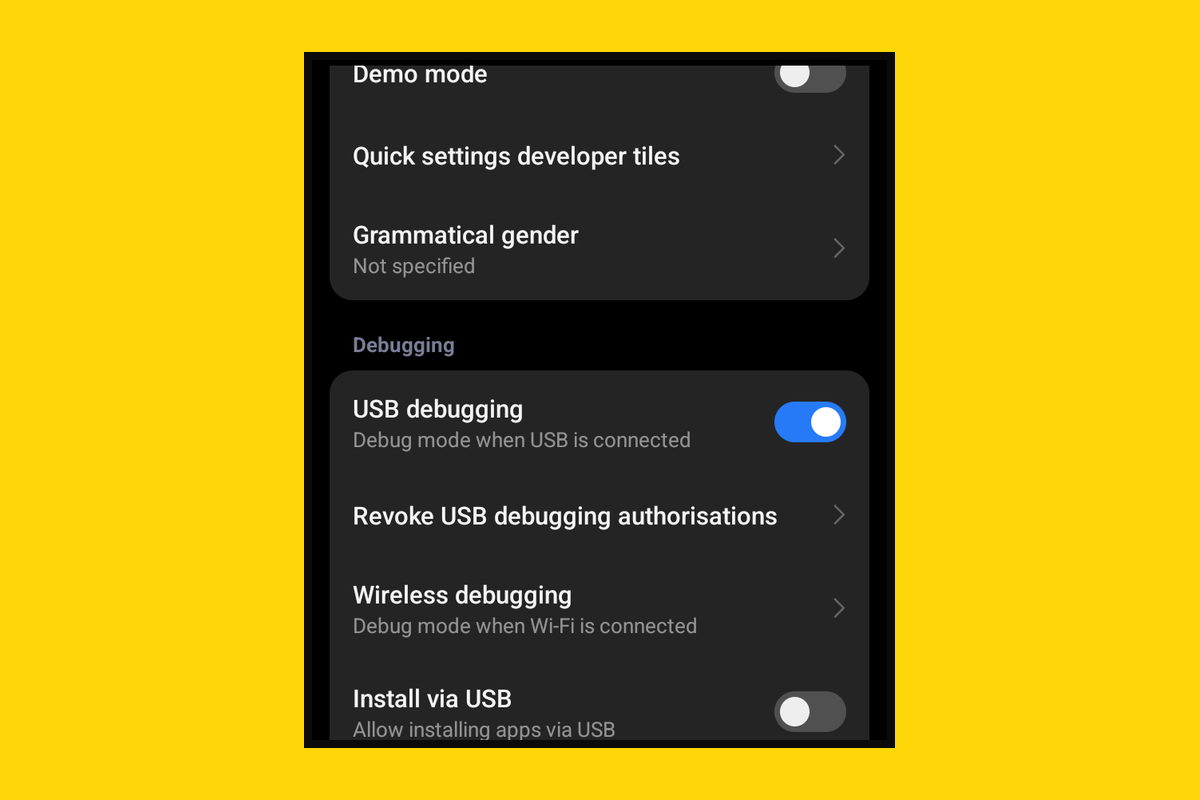
Only allow your own computer. USB debugging gives a computer full control of your phone. When the phone asks “Allow USB debugging?”, only say yes to your own laptop, and switch USB debugging off again when you’re finished.
Step 2: connect Claude Code to the phone
Plug the phone in, open Claude Code in an empty folder and type:
Take control of my Android phone over USB. Install adb if I don’t have it, then check the phone is connected.
Claude installs Android’s platform tools (the official SDK Platform-Tools from Google, which include adb) and runs adb devices. Your phone will pop up the “Allow USB debugging?” prompt: tap Allow. When Claude says the phone is connected, you’re in.
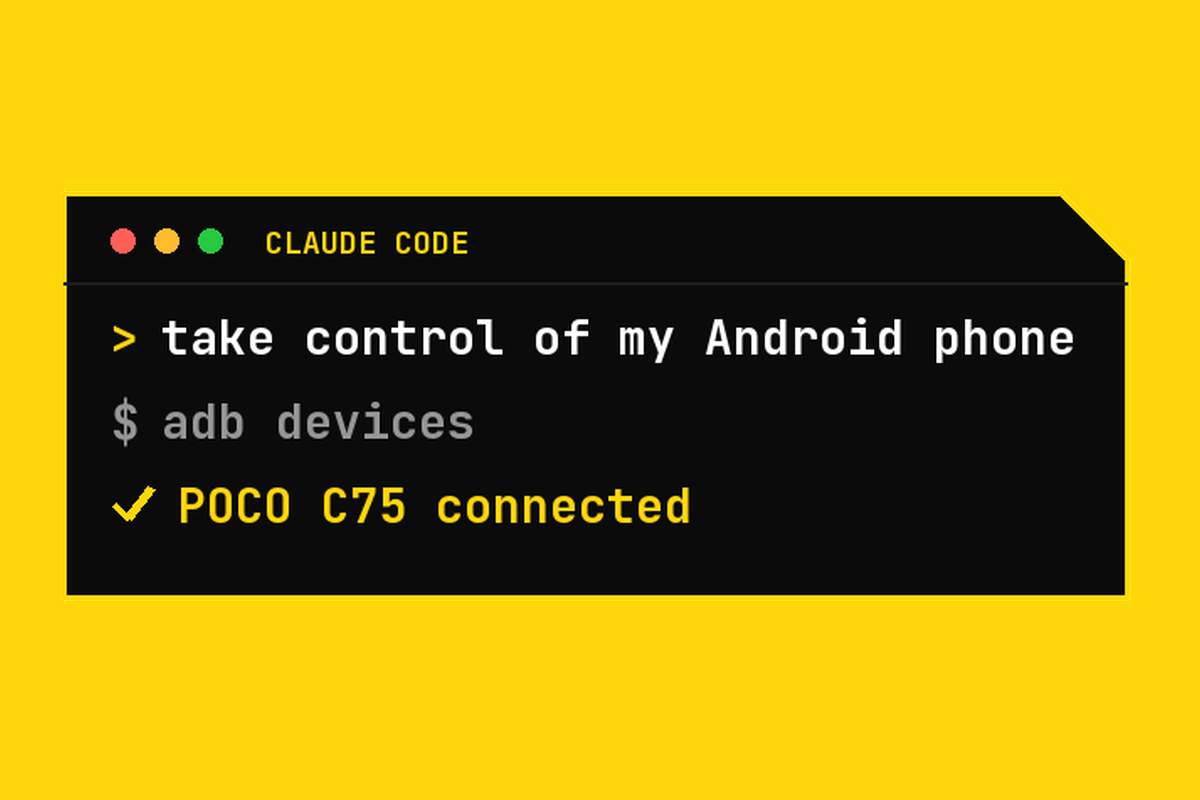
While I was there, I also asked Claude to check the phone for anything dodgy (where every app came from, and which apps have risky permissions) and to remove the preinstalled ad apps. Claude removed them with pm uninstall -k --user 0, which removes an app for your user only, so it can be restored any time with cmd package install-existing. Ask Claude to save a restore script before it removes anything.
Step 3: let Claude design it in Figma
This is the fun part. I gave Claude my brand (black, Flag Yellow, my fonts) and my goals for the year, then asked:
Design my phone’s home screen wallpaper, lock screen wallpaper and an icon for every app on my phone, in my brand, in Figma. The phone screen is 720 by 1640. Keep the bottom of the home screen clear for the dock.
Claude asked the phone for its screen size and its list of apps, then drew everything on one Figma page: a home wallpaper with my goal list, a lock screen, a home screen mockup with folders, and a grid of icons, one per app.
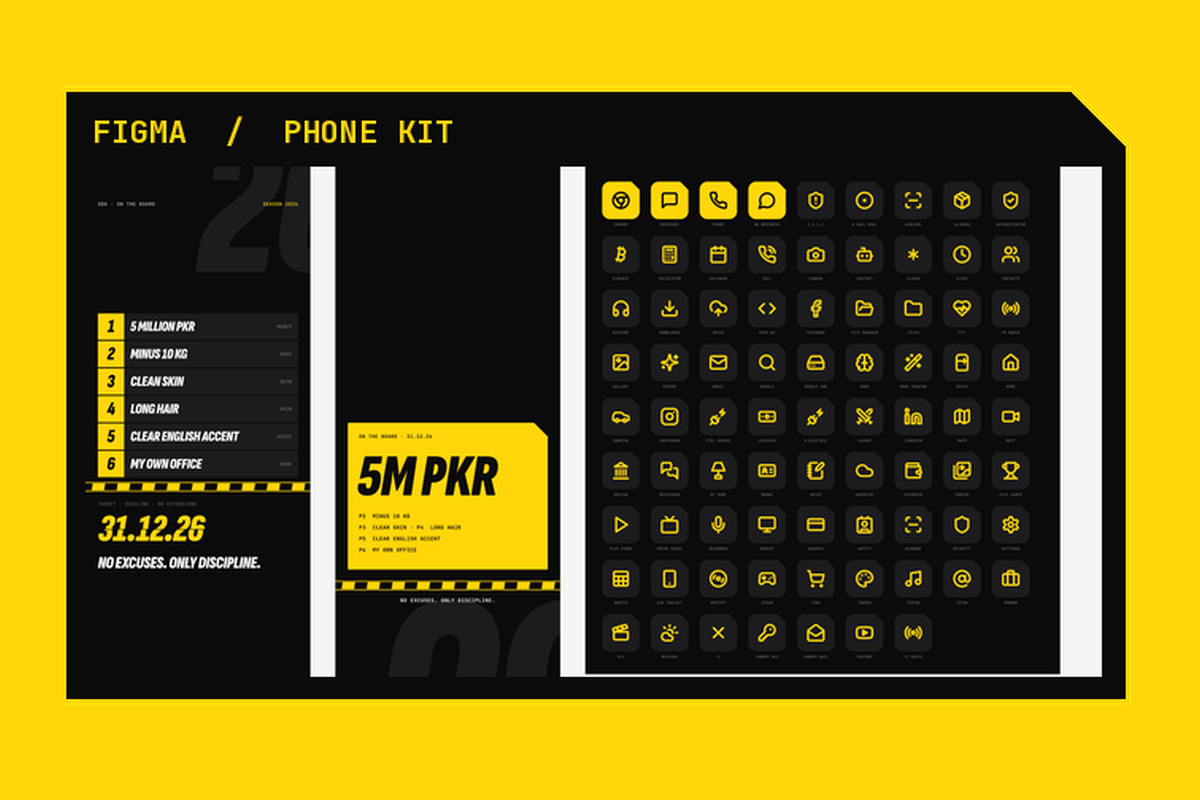
Check it in Figma before anything touches the phone. Changing a colour or a word here takes seconds.
Step 4: turn the icons into an icon pack
The phone’s own launcher on HyperOS 3 doesn’t support icon packs, so the icons needed two things: a launcher that accepts icon packs, and the icons packaged as a small Android app.
- Launcher: I used Lawnchair, a free and open-source launcher that supports icon packs and has no ads.
- Icon pack: Claude built the 79 icons (line icons from the open-source Lucide set, on my black tiles with the cut corner, dock apps in yellow) into an icon pack app using Android’s build tools, signed it and installed it with
adb install.
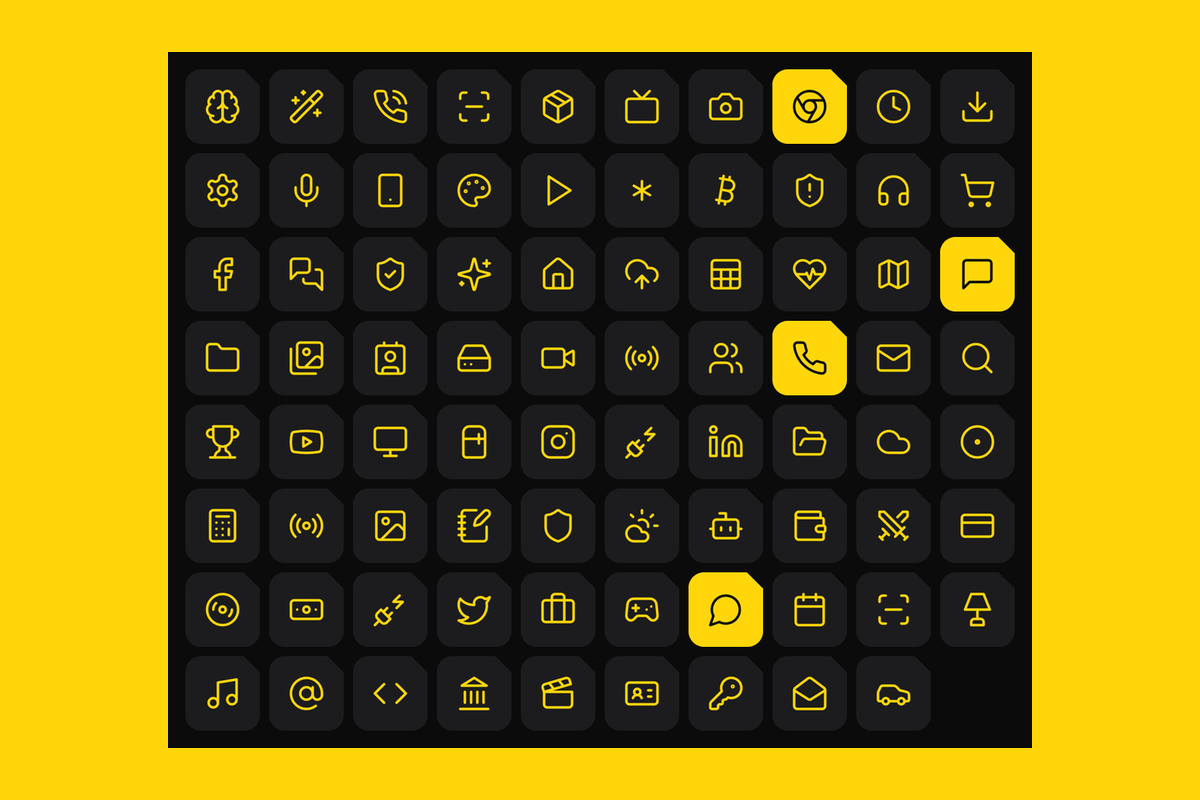
The prompt:
Export the icons from Figma, build them into an icon pack app that Lawnchair can use, and install it on my phone. Also export both wallpapers at twice the phone’s resolution and copy them to the phone’s Pictures folder.
Step 5: switch it on
A few taps are still yours, because Android asks the person holding the phone to confirm them:
- Home app: press the home button and choose Lawnchair, then Always.
- Icons: in Lawnchair settings, open Icon style and pick your icon pack.
- Wallpapers: open the wallpapers in your Gallery and use Set as wallpaper for the home screen and lock screen.
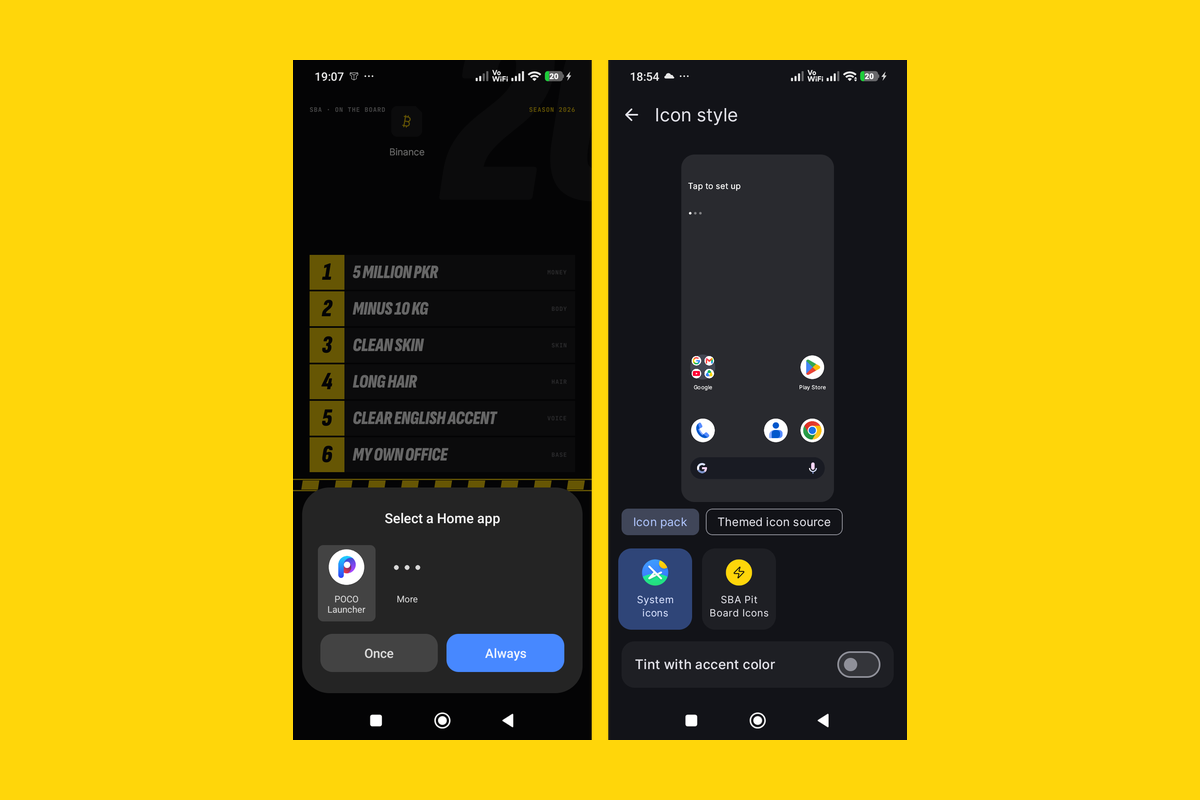
Then I let Claude tidy up: a 4 by 7 grid, the dock search bar off, and my apps grouped into folders above the goal list.
The result
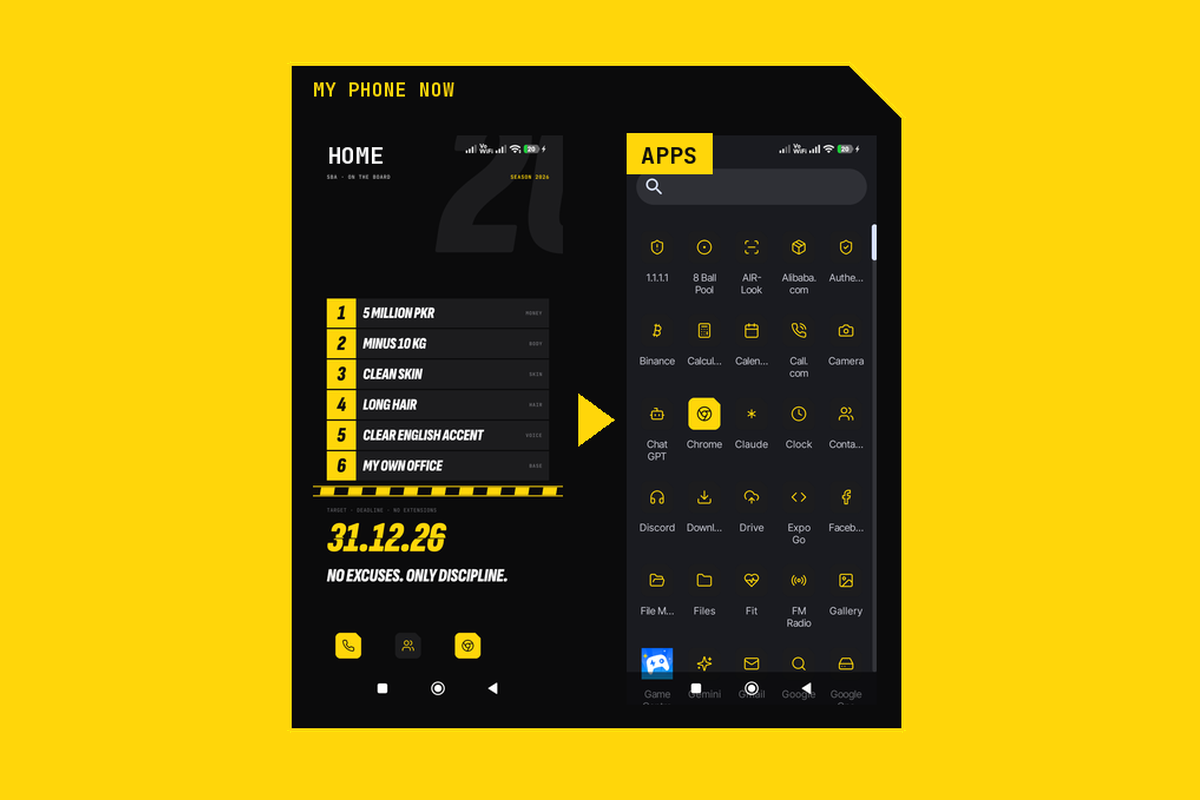
Every screen I look at all day is now in my brand, with my goals for the year on the home screen. (Please ignore the goals.)
One bonus: I also set the phone’s Private DNS to dns.adguard-dns.com (Settings > Connection and sharing > Private DNS on Xiaomi), which blocks most ads in apps and browsers.
How to undo it
- Home screen: Settings > Apps > Default apps > Home app, and pick your phone’s original launcher.
- Icon pack and Lawnchair: uninstall them like any app.
- Removed apps: run the restore script Claude saved, or ask Claude to reinstall them with
cmd package install-existing. - USB debugging: switch it off in Developer options when you’re done.
FAQ
Do I need to know how to code?
No. You type what you want in plain English and Claude Code runs the commands. You do need to read what it’s about to do and approve it, especially anything that removes apps.
Will this void my warranty or root my phone?
No. Nothing here roots the phone or unlocks the bootloader. USB debugging, a launcher from the Play Store and an icon pack app are all normal Android features.
Does it work on Samsung, Pixel or other Android phones?
Yes. The menu names for Developer options differ a little between brands, but adb, Lawnchair and icon packs work the same way. The extra Mi account step is only for Xiaomi and POCO phones.
Can I do this on an iPhone?
Not like this. iPhone doesn’t allow a different home screen app or this kind of USB control. You can change wallpapers and make custom icons with Shortcuts, but each one is set up by hand.
What to do next
If you want my exact prompts and Figma setup, message me and I’ll send them over. And if you use Claude Code a lot, my Graphify guide shows how I cut its token use on big projects.
Free tutorials
Want the next tutorial first?
Leave your details and each new one comes to your inbox and WhatsApp.
You're in.
Thanks. The next tutorial comes straight to your inbox and WhatsApp.

I build booking systems, websites and AI automation for padel clubs, gyms and leisure venues. 56 projects delivered on Upwork with 100% Job Success.